Sentral Parent Portal
Sentral is the primary platform for parents of students at Kidman Park Primary School. Accessible via the app or any web browser, you can choose the option that suits you best.
We’ve put together this guide to highlight the most commonly used features of Sentral. We hope it helps you easily find the information you need. If you require further assistance, please refer to the Sentral for Parents app User Guide. Alternatively, one of our friendly administration team members may be able to assist. However, it’s important to note that we cannot view Sentral from a parent’s perspective, so visiting the office in person may be the most effective way we can help you. Feel free to contact us at (08) 8353 2444 or via email at dl.0996.admin@schools.sa.edu.au
Getting access
- Download the ‘Sentral for Parents’ App from the Apple App store or Google Play store.
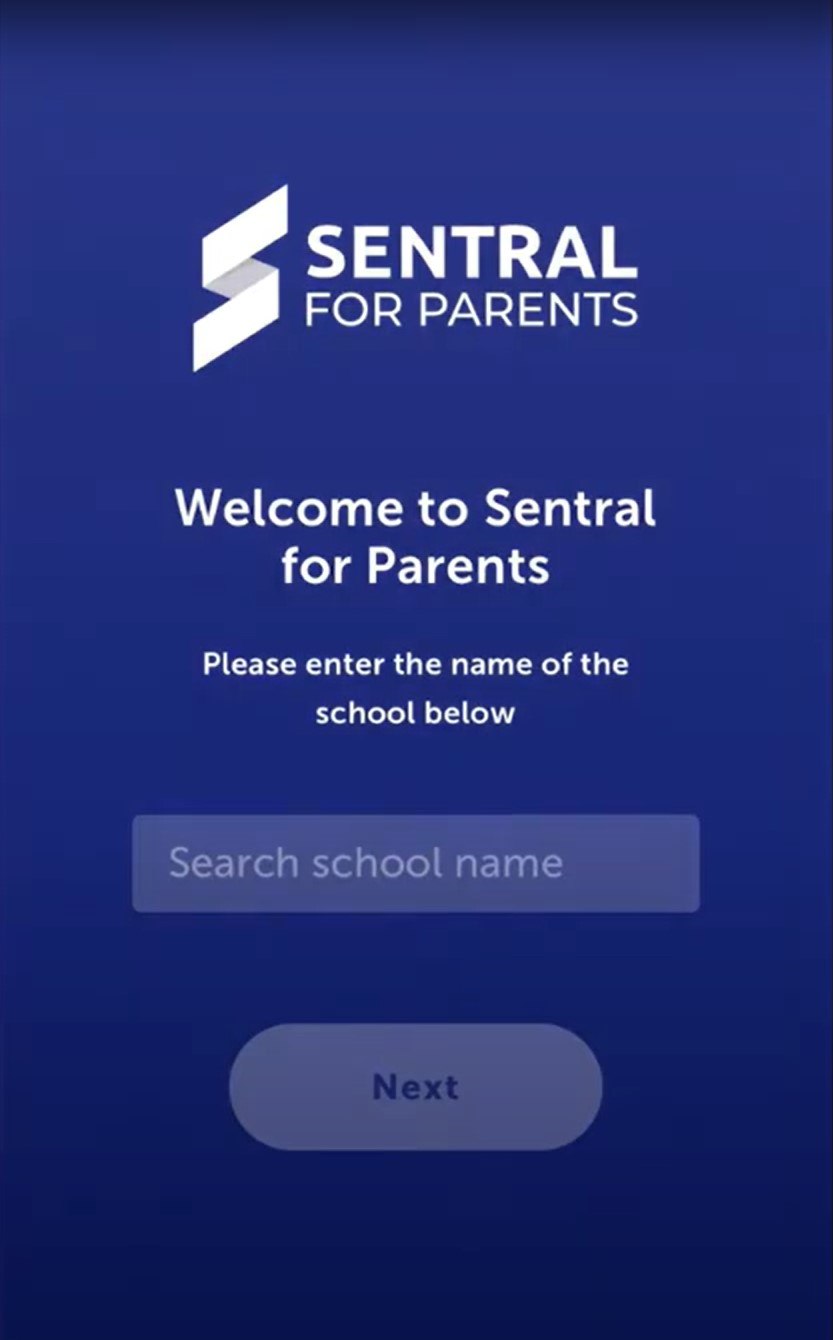
- Search for ‘Kidman Park Primary School in the Search box, click next.
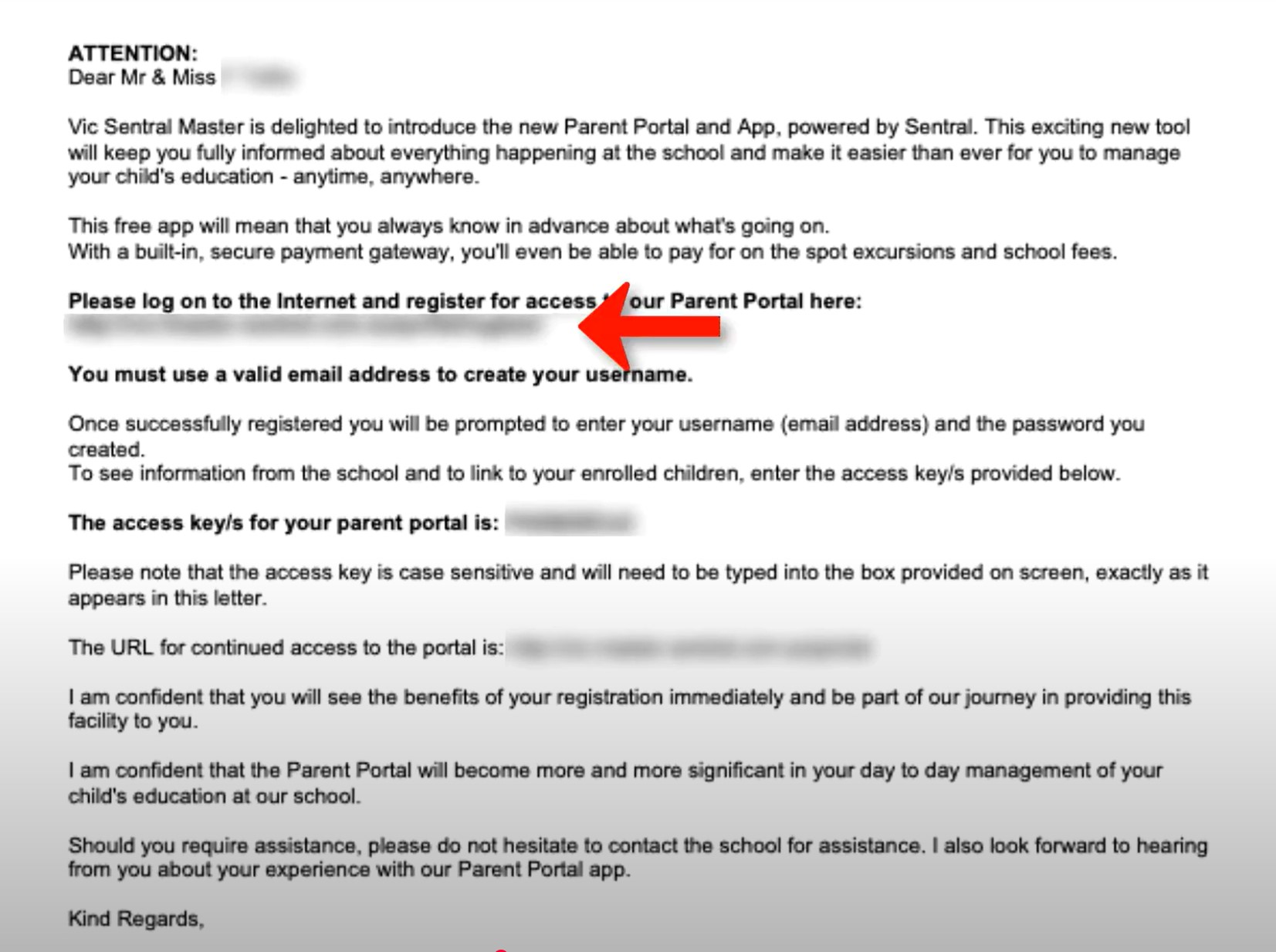
- Create Account – Click the register here link to set up your login/profile, click ‘Create Account’.
- Email Verification – check the email account of the email you entered at the ‘Create Account’ stage. Click the ‘Verify’ button in the email, this will redirect you to the KPPS Sentral Parent Portal on the web and confirms that you have an account.
- Close this screen to return to the App Login screen and enter the credentials you just created.
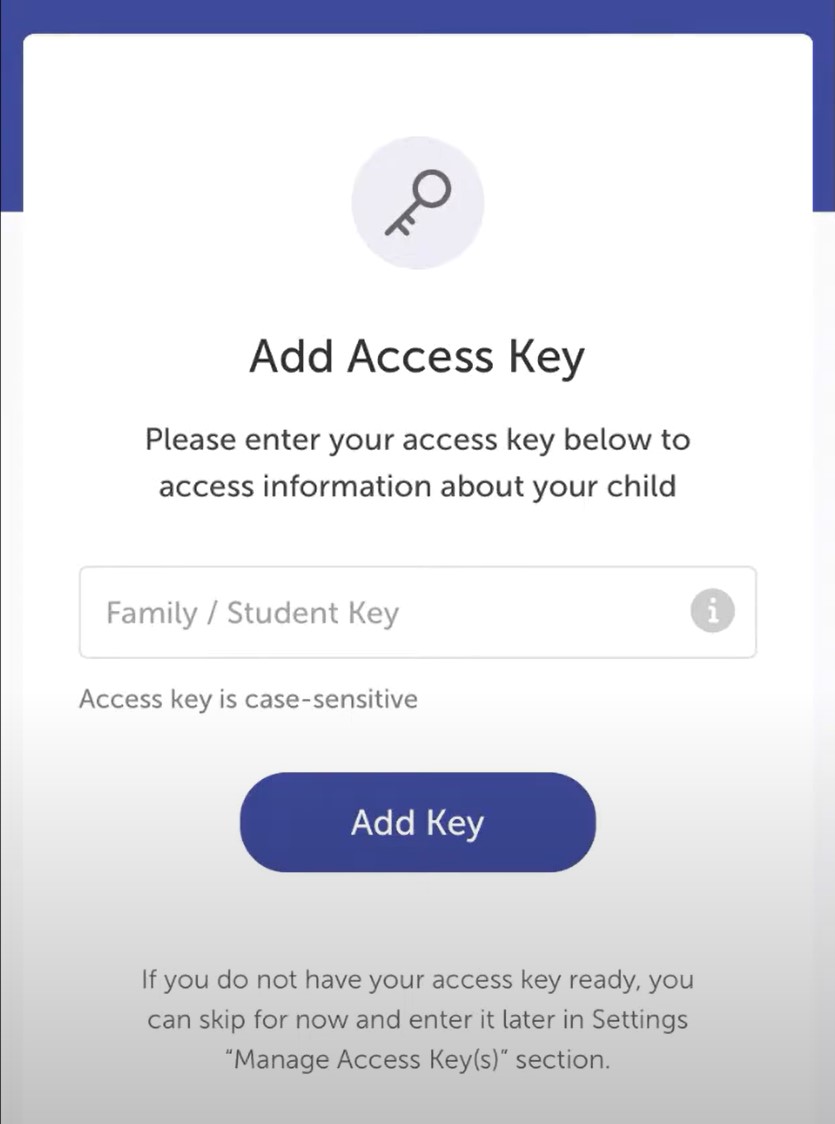
- Sentral will now request an Access Key, once you enter the key you will be ready to use the app and access its features.
NOTE: Upon enrolment, within the first few weeks, you should have received an email requesting to join Sentral, this email will contain your unique Access Key. Each parent/caregiver has their own unique Access Key. The school uses the email address that you provided on the Enrolment form.
Absences
The ‘Absences’ icon allows parents to communicate absence information directly to the school anytime of the day or night. There is no need to ring the office during office hours whilst trying to juggle work or whatever daily commitments you may have. This convenient way of reporting your absence notifies the office and class teacher in just a few simple clicks. This includes updating past absences that require explanation and ‘future’ absences. A ‘future’ absence occurs when a parent is aware a child will be away from school (e.g. Holidays, specialist appointments).
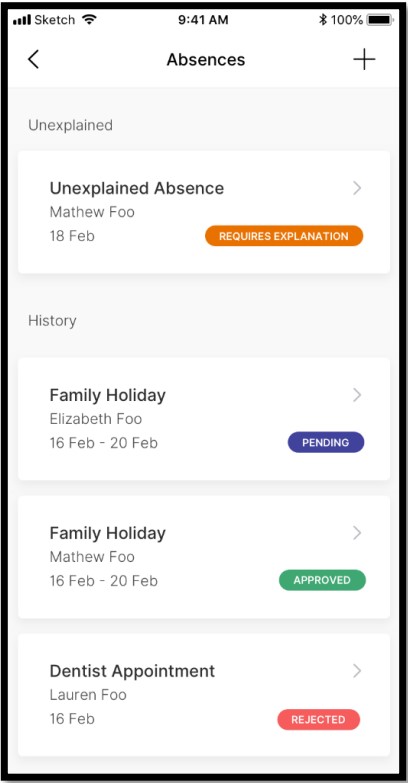
Existing unexplained absences
The first screen displays a list of Absences and their status (Pending, Approved, Rejected). You will need to select the Unexplained Absence – Requires Explanation item to confirm and explain an existing absence.
New absences
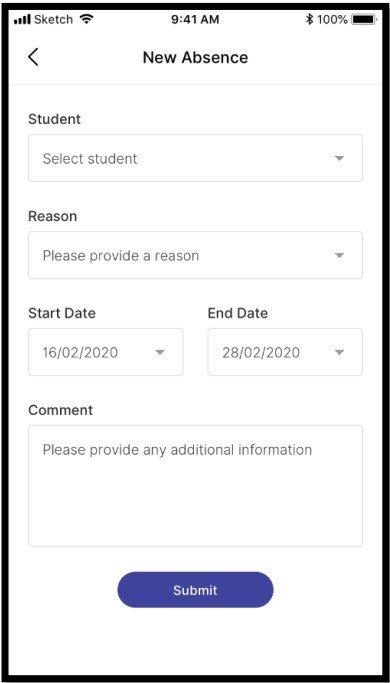
In Absences, you can submit a New/Future absence by clicking on the (+) icon in the top right corner of the screen.
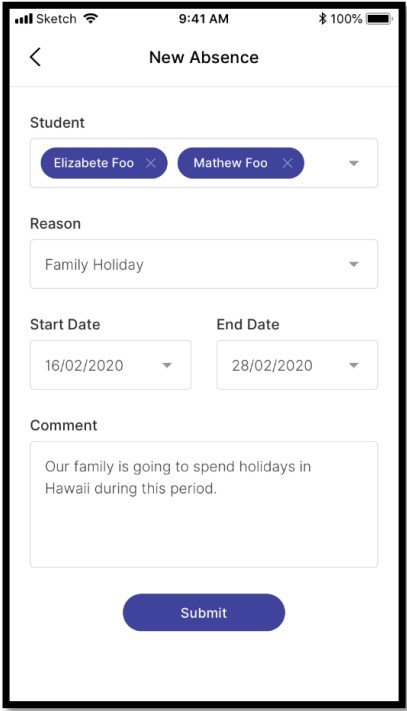
The next screen will allow you to select;
- The absent Student
- The Reason for the absence
- The Start and End date for the absence
- Any additional comments or supporting information
- Please complete all fields and click the “Submit” button
Newsfeed
The Newsfeed contains news items from the school relating to your child. Some items may require you to take a specific action. Others will be informational only. The items you see here will be the same as those available in the Portal.
The Newsfeed shown below, displays items in 2 columns; All and Requires Action. The All column displays news items for the school and the Requires Action column displays news items that require action. These can be specific to the school or the student and will depend on the current filter you have applied.
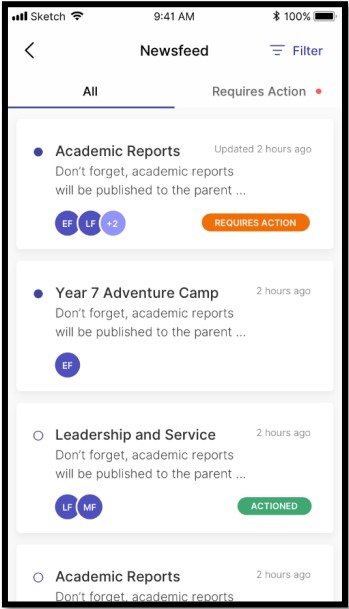
You can filter by clicking on the All button located in the top right corner of the screen. This will filter to a specific student(s) and will allow you to action specific items related to that student.
The Newsfeed items can also contain Attachments that you can download. The app will require access to your device to enable downloads. When a Newsfeed item requires you to take an action (e.g. grant approval), clicking on the item will take you to a screen that will allow you to perform that action. These actions include, Activities, Reports and Interviews.
Calendars
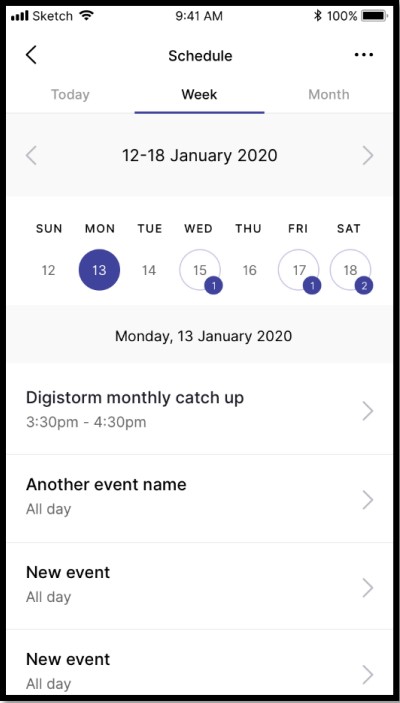
In Calendars, Parents can view Schedules by; Today, Week or Month
By clicking on the respective sections at the top of the screen.
Parents can then drill down into each specific Event in the Calendar by clicking on the arrow (>). You will then be given details about the event which will include;
- The Event Name
- The Date of the Event
- The Time of the Event
- A Description of the Event
- Contact Details of the Event Organiser
- Address the Event will be taking place
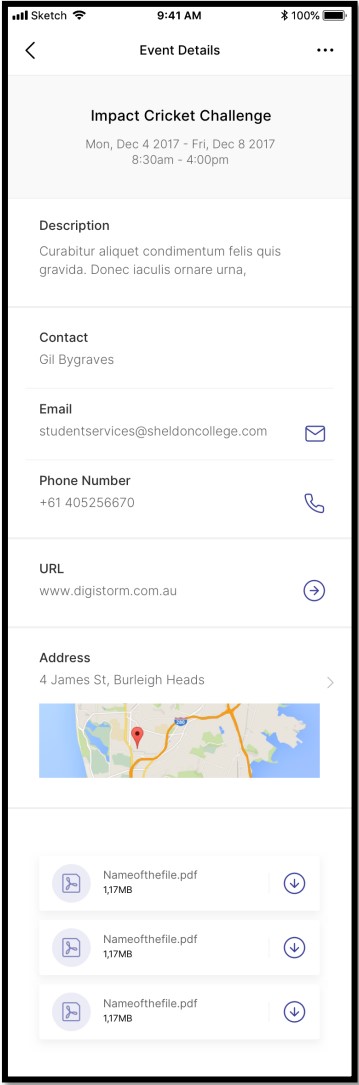
If there are any attachments to the Event, you will also be able to download them by clicking on the download icon.
Interviews, resources and settings
Parent teacher interviews
In the leadup to Parent Teacher interviews you will receive a notification from the school to book a time with your child’s teacher, this is done via the Sentral App. Once signed in, on your home screen simply click PT Interviews icon and follow the prompts. Interview bookings enable one-on-one sessions between staff and parents.
Parents can book available time slots or request a specific time.
Resources
Resources allow Parents to;
- Download files
- Open folders to view files stored within
This section can house numerous Documents that Teachers may deem appropriate for Parents.
Newsletters
Parents can open Newsletters from this area. Newsletters are the school’s primary form of communication, notifying you of changes at school, reports on recent events and preparing you for events that are fast approaching. All Newsletters for the year can be located under this tab.
From your home screen simply click Newsletters icon and then select the latest newsletter to read all the latest news and achievements from students.
School reports
School Reports are released twice per year, once at the end of term 2 and the second time at the end of term 4. Parents can access and DOWNLOAD their student reports from this section. It is important that reports are downloaded at the time as they are not permanently stored in the portal.
Settings
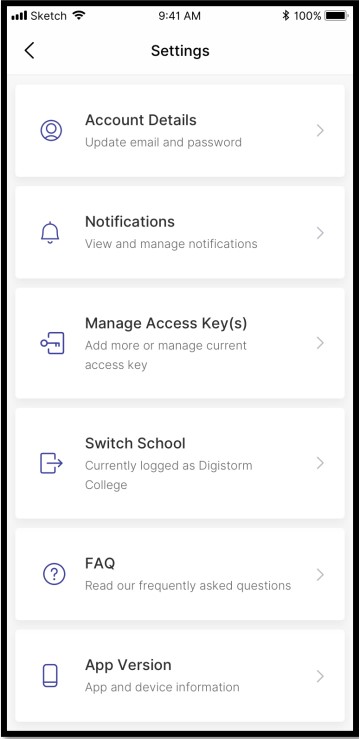
See image below that illustrates the functions that are available in settings. They include;
- Account Details – Update your email and password
- Notifications – Enable/Disable Push Notifications here if you wish to have notifications appear on your device without having to access the app
- Manage Access Keys – Allows you to add or manage your current Access Key
- Switch School – Identifies the currently logged in School and allows you to Switch School to any others which have been associated to the account
- FAQ – This links you to the Frequently Asked Questions
- App Version – Provides details on the current App Version and Device Information